This walkthough was created using Internet Explorer v8.0 as a guide, however alternate versions of the
browser will be very similar in procedure as well.
1. Within Internet Explorer, select "Tools" from the menu at the top of the screen, and then in the resulting
drop-down menu select "Internet Options".

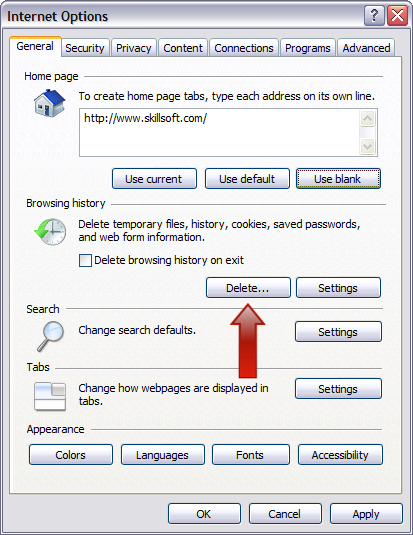
2. While on the "General" tab click on the "Delete" button under the "Browsing History" heading.
This will start the process to clear your web browser's temporary internet files.
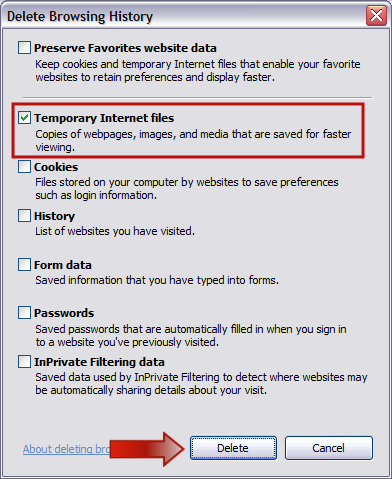
In the new window that opens, ensure that there is a checkmark in only "Temporary Internet Files" and
then click on the "Delete" button. This process may take a few minutes to complete.
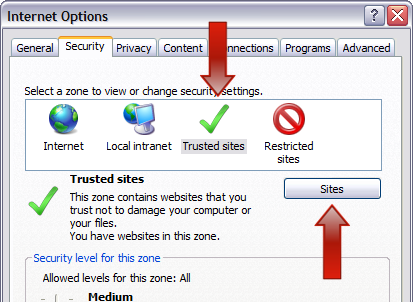
3. Next, please click on the "Security" tab.
Select the "Trusted Sites" icon and then click on the "Sites" button.
In the new "Trusted Sites" window, remove the checkmark for "Require server verification (https:) for
all sites in this zone".
In the top input box type skillport.com and then click the "Add" button. Please repeat the same steps to
also add skillwsa.com.

After both sites have been successfully added, you may exit the window by clicking on the "Close" button.
4. While still on the "Security" tab window with "Trusted Sites" highlighted, click the "Default Level"
button and click "Apply".

5. Next, please click on the "Programs" tab.
Click on the "Manage add-ons" button.

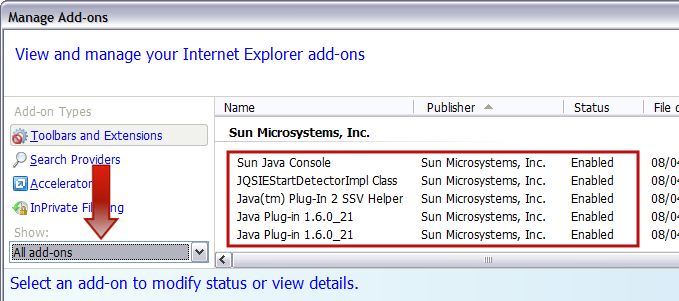
Under the "Show" drop-down menu select "All add-ons".
Ensure that all "Java Plug-in" versions and the "Sun Java Console" are set to "Enabled", then click
"Close".
Please click on the "OK" button to return to the main web browser window.
Clearing the Java cache.
Next we will clear the Java Runtime Environment (JRE) temporary cache.
1. Access the Windows Control Panel on your computer. Click on "Start > Settings > Control Panel".

2. Once in the Control Panel, locate the "Java" icon and open it.

3. On the "General" tab click the "Settings"button under the "Temporary Internet Files" heading.

4. In the new window click the "Delete Files..."button.

In the new window ensure that both options are selected, and then click "OK".
This process may take a few minutes to complete.

Click the "OK" button two more times to close out of the Java Control Panel window.
This concludes the optimization of the Internet Explorer web browser and the Java Runtime Environment.
Back to the top of this page.
